
A container image registry is a mandatory component for application containerization. While Docker Hub is the top player, network connectivity issues often make it less than smooth to use in certain regions. Consequently, building an enterprise-exclusive private image registry has become a key step in enterprise cloud-native transformation.
There are many similar solutions on the market today, such as Harbor, GitLab Container Registry, and GitHub Container Registry. However, these projects all utilize the open-source project Distribution. The primary product of this project is an open-source Registry implementation compliant with the OCI Distribution specification. Therefore, we can use this open-source project independently to build a private container image hosting platform.
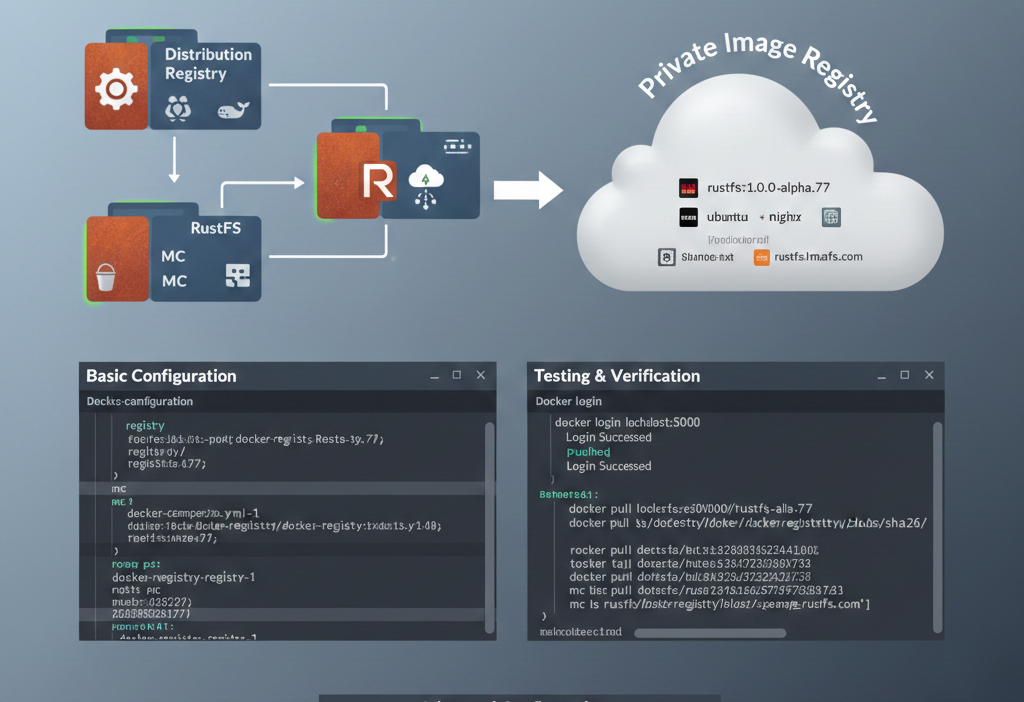
Since Distribution supports S3 as a storage backend, and RustFS is a distributed object storage system compatible with S3, we can configure RustFS as the storage backend for Distribution. The complete implementation process is detailed below.
Basic Configuration
Installation
We will containerize the deployment of both Distribution and RustFS. The entire process involves three containers:
- Distribution: Hosts the container images. It depends on the RustFS and MC services; the configuration is as follows:
  registry:
    depends_on:
      - rustfs
      - mc
    restart: always
    image: registry:3
    ports:
      - 5000:5000
    environment:
      REGISTRY_STORAGE: s3
      REGISTRY_AUTH: htpasswd
      REGISTRY_AUTH_HTPASSWD_PATH: /auth/htpasswd
      REGISTRY_AUTH_HTPASSWD_REALM: Registry Realm
      REGISTRY_STORAGE_S3_ACCESSKEY: rustfsadmin
      REGISTRY_STORAGE_S3_SECRETKEY: rustfsadmin
      REGISTRY_STORAGE_S3_REGION: us-east-1
      REGISTRY_STORAGE_S3_REGIONENDPOINT: http://rustfs:9000
      REGISTRY_STORAGE_S3_BUCKET: docker-registry
      REGISTRY_STORAGE_S3_ROOTDIRECTORY: /var/lib/registry
      REGISTRY_STORAGE_S3_FORCEPATHSTYLE: true
      REGISTRY_STORAGE_S3_LOGLEVEL: debug
    volumes:
      - ./auth:/auth
    networks:
- rustfs-ociNote: REGISTRY_AUTH specifies the authentication method for the container image registry. This article uses a username and password. You can generate an encrypted password using the following command:
docker run \
  --entrypoint htpasswd \
  httpd:2 -Bbn testuser testpassword > auth/htpasswd
Mount the generated auth/htpasswd file into the Registry container. You will then be able to log in to the registry using testuser/testpassword.
- RustFS: Stores the image registry data. The configuration is as follows:
  rustfs:
    image: rustfs/rustfs:1.0.0-alpha.77
    container_name: rustfs
    hostname: rustfs
    environment:
      - RUSTFS_VOLUMES=/data
      - RUSTFS_ADDRESS=0.0.0.0:9000
      - RUSTFS_CONSOLE_ENABLE=true
      - RUSTFS_CONSOLE_ADDRESS=0.0.0.0:9001
      - RUSTFS_ACCESS_KEY=rustfsadmin
      - RUSTFS_SECRET_KEY=rustfsadmin
      - RUSTFS_OBS_LOGGER_LEVEL=debug
      - RUSTFS_OBS_LOG_DIRECTORY=/logs
    healthcheck:
      test:
        [
          "CMD",
          "sh", "-c",
          "curl -f http://localhost:9000/health && curl -f http://localhost:9001/rustfs/console/health"
        ]
      interval: 10s
      timeout: 5s
      retries: 3
      start_period: 30s
    ports:
      - "9000:9000"  # API endpoint
      - "9001:9001"  # Console
    networks:
- rustfs-oci- MC: Creates the bucket to store data. It depends on the RustFS service;
  mc:
    depends_on:
      - rustfs
    image: minio/mc
    container_name: mc
    networks:
      - rustfs-oci
    environment:
      - AWS_ACCESS_KEY_ID=rustfsadmin
      - AWS_SECRET_ACCESS_KEY=rustfsadmin
      - AWS_REGION=us-east-1
    entrypoint: |
      /bin/sh -c "
      until (/usr/bin/mc alias set rustfs http://rustfs:9000 rustfsadmin rustfsadmin) do echo '...waiting...' && sleep 1; done;
      /usr/bin/mc rm -r --force rustfs/docker-registry;
      /usr/bin/mc mb rustfs/docker-registry;
      /usr/bin/mc policy set public rustfs/docker-registry;
      tail -f /dev/null
      "
Write the configurations for the three containers above into a docker-compose.yml file, and then execute:
docker compose up -dCheck the service status:
docker ps
CONTAINER ID   IMAGE                          COMMAND                   CREATED             STATUS                       PORTS                                                                                NAMES
7834dee8cbbf   registry:3                     "/entrypoint.sh /etc…"    38 minutes ago      Up 38 minutes                0.0.0.0:80->5000/tcp, 0.0.0.0:443->5000/tcp, [::]:80->5000/tcp, [::]:443->5000/tcp   docker-registry-registry-1
f922568dd11f   minio/mc                       "/bin/sh -c '\nuntil …"   About an hour ago   Up About an hour                                                                                                  mc
bf20a5b2ab4b   rustfs/rustfs:1.0.0-alpha.77   "/entrypoint.sh rust…"    About an hour ago   Up About an hour (healthy)   0.0.0.0:9000-9001->9000-9001/tcp, [::]:9000-9001->9000-9001/tcp                      rustfs
Testing & Verification
We will verify the setup by logging into the container registry using the docker command and pushing a container image.
- Log in to the container registry
docker login localhost:5000
Username: testuser
Password:

WARNING! Your credentials are stored unencrypted in '/root/.docker/config.json'.
Configure a credential helper to remove this warning. See
https://docs.docker.com/go/credential-store/

Login Succeeded- Push an image
# Pull an image
docker pull rustfs/rustfs:1.0.0-alpha.77

# Tag the image
docker tag rustfs/rustfs:1.0.0-alpha.77 localhost:5000/rustfs:1.0.0-alpha.77

# Push the image
docker push localhost:5000/rustfs:1.0.0-alpha.77
The push refers to repository [localhost:5000/rustfs]
4f4fb700ef54: Pushed
8d10e1ace7fc: Pushed
fcd530aedb30: Pushed
ea6fa4aba595: Pushed
2d35ebdb57d9: Pushed
67d0472105ad: Pushed
09194c842438: Pushed
1.0.0-alpha.77: digest: sha256:88eafb9e9457dbabb08b9e93cfed476f01474e48ec85e7a9038f1f4290380526 size: 1680

i Info → Not all multiplatform-content is present and only the available single-platform image was pushed
sha256:f761246690fdf92fc951c90c12ce4050994c923fb988e3840f072c7d9ee11a63 -> sha256:88eafb9e9457dbabb08b9e93cfed476f01474e48ec85e7a9038f1f4290380526- RustFS Verification
Check the contents of the docker-registry bucket on RustFS to confirm that the image data has been stored.

As you can see, the relevant data for the container image localhost:5000/rustfs:1.0.0-alpha.77 has been successfully stored in RustFS.
Advanced Configuration
In the configuration above, the Distribution Registry provides services via HTTP. However, in enterprise production environments, this method is typically impermissible; HTTPS must be configured.
For the Distribution Registry, HTTPS can be configured in several ways, such as providing a local certificate or using Let’s Encrypt directly. This article chooses the latter.
Configuring Let’s Encrypt for Distribution Registry involves the following four parameters:
| Parameter | Required | Description |
|---|---|---|
cachefile | yes | The file path (absolute path) where the Let’s Encrypt agent caches data. |
email | yes | The email address used to register with Let’s Encrypt. |
hosts | no | A list of hostnames (domains) allowed to use Let’s Encrypt certificates. |
directoryurl | no | The URL of the ACME server (this refers to a privately deployed ACME Server). |
Therefore, you only need to configure the following parameters:
REGISTRY_HTTP_TLS_LETSENCRYPT_CACHEFILE: /auth/acme.json
REGISTRY_HTTP_TLS_LETSENCRYPT_EMAIL: email@com
REGISTRY_HTTP_TLS_LETSENCRYPT_HOSTS: '["example.rustfs.com"]'
Then execute the following command again:
docker compose up -dVerify the setup on another server:
docker login example.rustfs.com
Authenticating with existing credentials... [Username: testuser]

i Info → To login with a different account, run 'docker logout' followed by 'docker login'


Login Succeeded
Execute the previous image push and RustFS console verification steps again.
Moving forward, you can use the image registry corresponding to the example.rustfs.com domain to host all internal enterprise container images. Furthermore, you can integrate the entire container image build and push process into your CI/CD pipelines.


